
Team workflow guide
How to share Claude work across your team
Shared Projects, chat snapshots, and a step-by-step setup for prompting Claude together.

Where does sharing a Claude chat stop being enough?
Sharing breaks down after the first answer, when a second person needs to continue the work, check its sources, or run it again next week.
Take a common case. A marketer asks Claude to draft a launch email from the brand guide and last quarter's best-performing emails. The draft is good. Now a product manager needs to check the specs, a designer needs the final copy, and next month someone else runs the same play for the next launch.
With snapshots, each handoff is a copy. The reviewer can read the draft but cannot see which emails Claude pulled, cannot ask a follow-up in the same conversation, and has to set up their own connectors to try. By the third launch, the team has five versions of the prompt in five private chat histories.
Run a handoff test on any workflow you care about: can a teammate repeat it next week without messaging the original author? If they need a copied prompt, a re-uploaded file, and their own integrations, the work is shared only on paper.
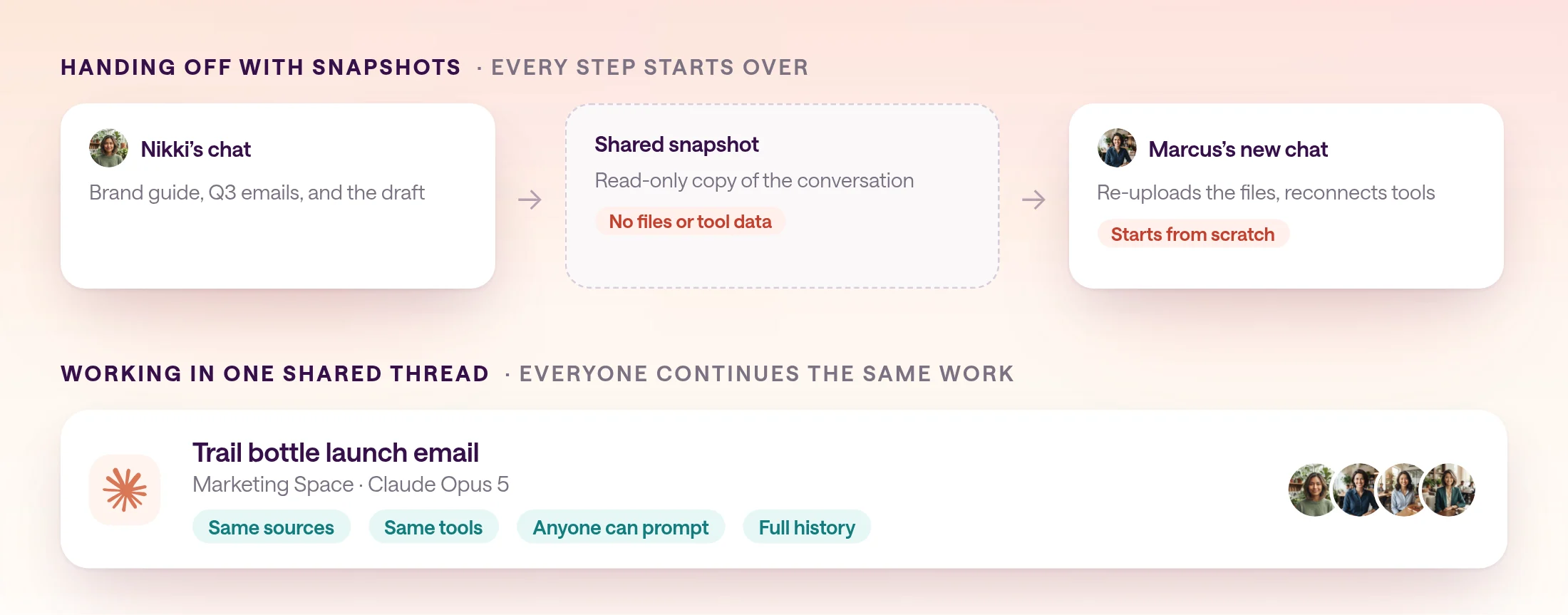
- Continuity: a snapshot is frozen, so the next step starts in a new chat.
- Evidence: files and tool-call data are hidden, so reviewers cannot check the sources.
- Setup: every person reconnects the same tools with their own accounts.
- Repetition: nothing runs on a schedule, so recurring work depends on someone remembering.
How do you set up a shared Claude workspace for your team?
Give the team one shared place per department, run Claude inside it, connect the tools once, and invite people into the same threads.
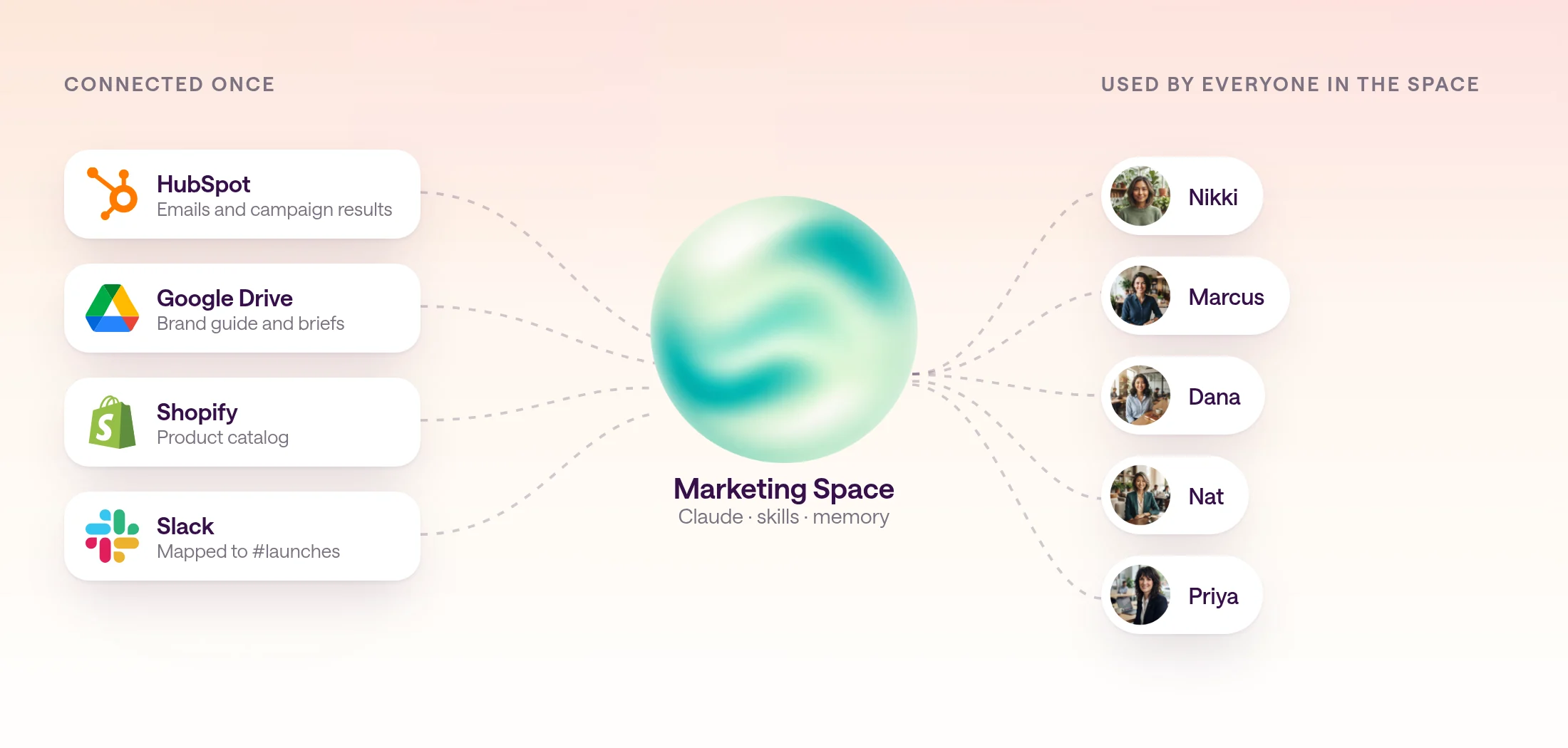
In type.com, that shared place is a Space: a shared computer for one team that runs Claude or Codex with the team's connections, skills, memory, threads, and Library. The setup below takes about 20 minutes for a first team.
- 1
Create one Space for the team
Choose a durable team, such as Marketing, rather than a single project. Projects become channels inside the Space, so you never reconnect tools when priorities change.
- 2
Pick Claude and a default model
Set Claude as the Space's runtime and choose the model most work should use. People can still change the model for a single thread from the composer.
- 3
Connect each person's Claude subscription
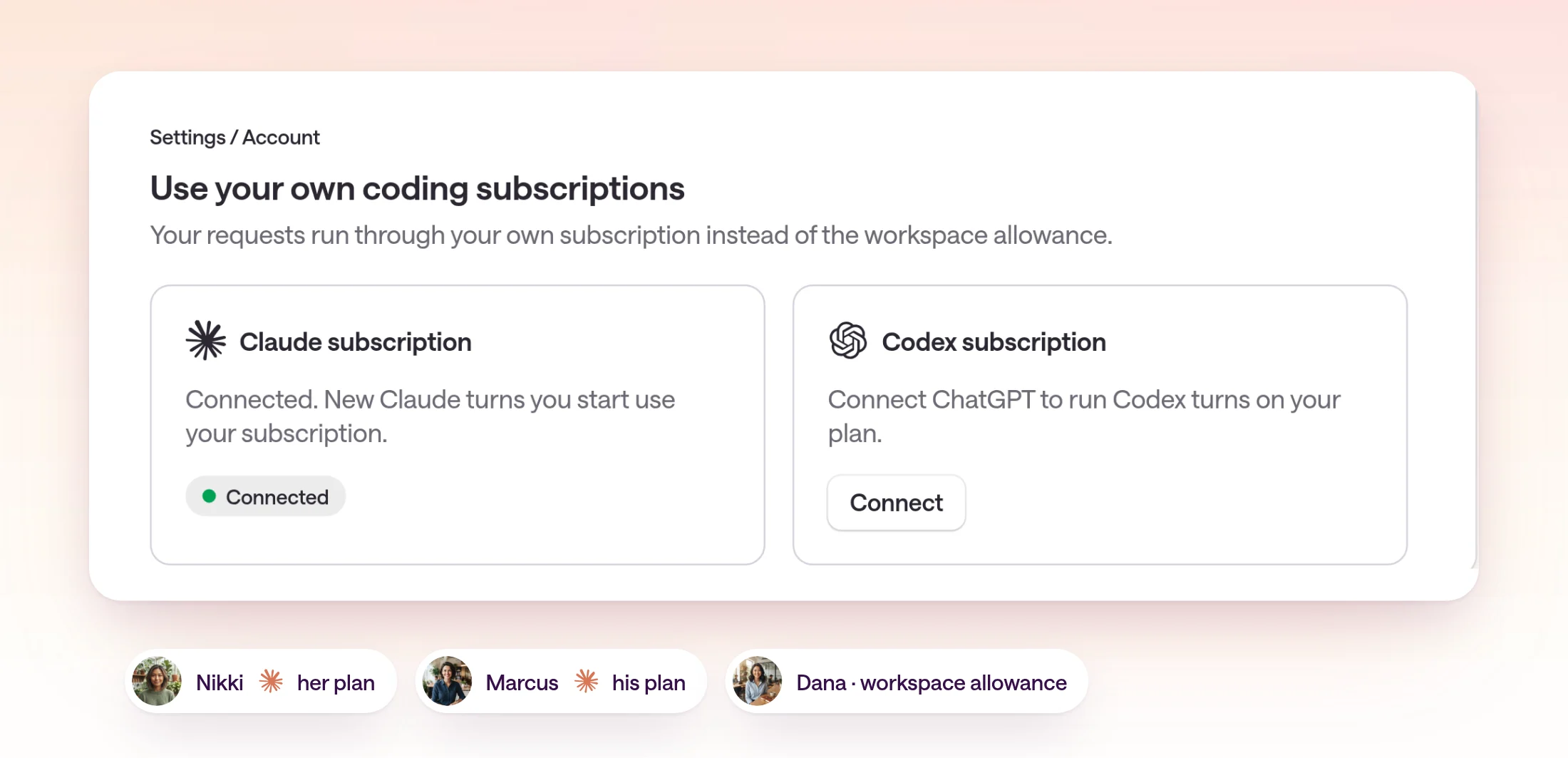
Each teammate opens Settings, Account, Use your own coding subscriptions, and connects Claude. Eligible requests they start then run through their own plan instead of the workspace allowance.
- 4
Assign only the connections this team needs
Add shared business systems, like HubSpot or Google Drive, as organization connections and assign them to the Space. A connection added to the workspace is not available in a Space until you assign it.
- 5
Move reference material into the Library
Upload the brand guide, product specs, and examples you used to paste into Claude Projects. Library documents stay editable, so the whole team works from the latest version.
- 6
Create channels for recurring work
Add channels such as launches, content, and reporting. They share the Space's tools and memory but keep conversations easy to find. Map a Slack channel if the team lives there.
- 7
Start the first shared thread and invite people in
Ask Claude for a real piece of work, then mention the teammate who should review it. Everyone with access to the Space can read the thread and prompt in it.
What does working together in one Claude thread look like?
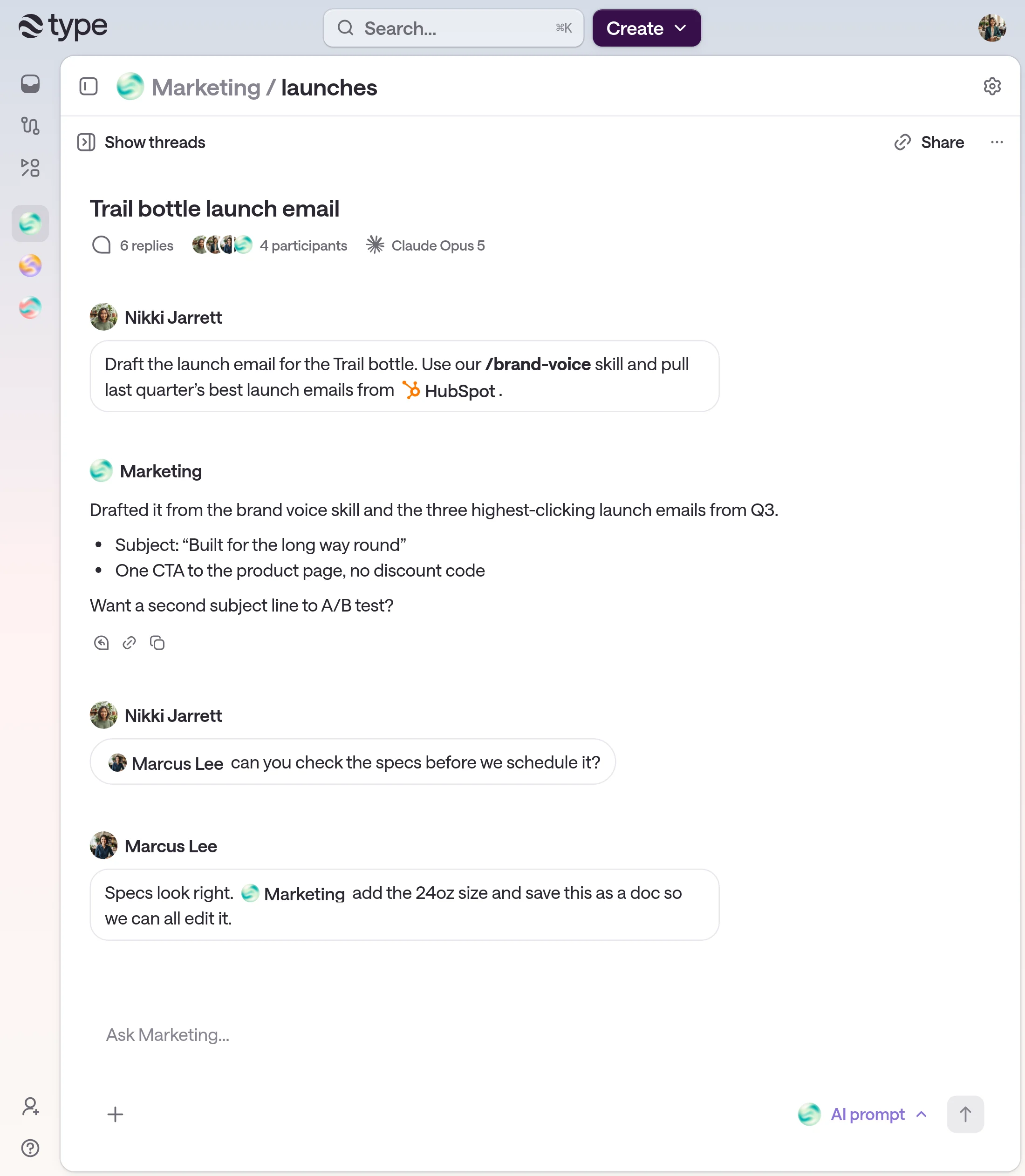
Everyone works in one thread: people prompt Claude, mention each other, and ask Claude to act on the latest message, with the sources visible to all.
In the thread above, Nikki asks the Marketing Space for a launch email. Claude uses the team's brand-voice skill and pulls last quarter's emails through the HubSpot connection. Nikki then mentions Marcus, who checks the specs and asks Claude to add a size and save the draft as a document. Nobody copied a prompt or re-uploaded a file.
A few habits make shared threads work well. Switch the composer to Team message when you want to talk to a teammate without invoking Claude, then switch back when you want Claude to act. Open the tool-call details when someone asks where a number came from. Close the thread when the work ships; it stays searchable for the next launch.
Ask Claude to turn finished work into a document or app when people will keep editing it. The document lands in the Space Library, linked to the thread that created it, so the next person sees both the result and how it was made.
How do you turn a good Claude chat into a reusable skill?
When a prompt works twice, save it as a skill so anyone on the team can run the same process with one command.
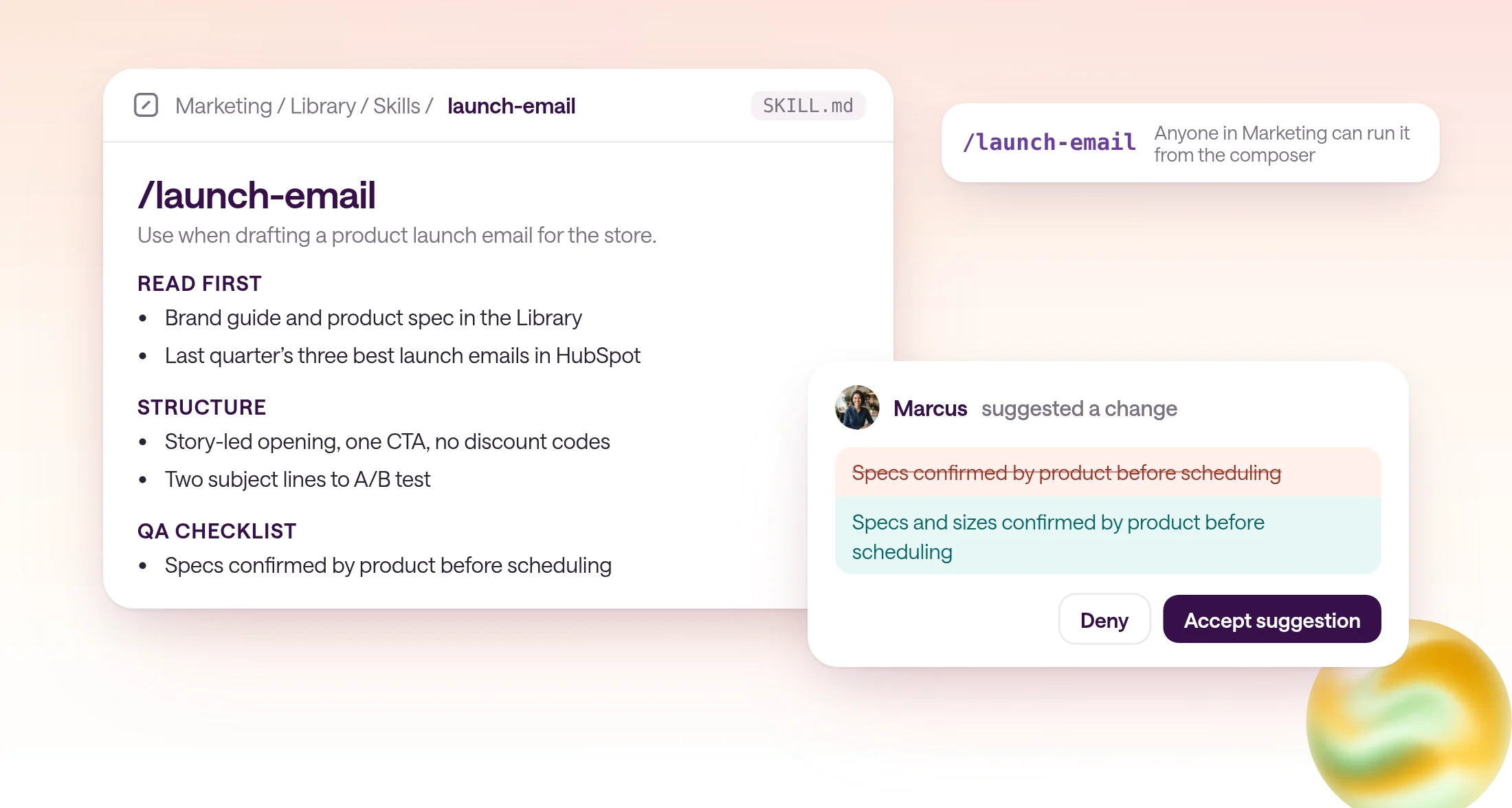
A skill is a SKILL.md file with instructions, plus optional examples and scripts. It is the same format Claude Code uses, so a skill you write in type.com still works outside it. In a Space, skills live under Library, Skills, and anyone can invoke one from the composer by its handle.
The fastest way to write one is from a thread that already worked. Ask Claude to extract the process, then edit the draft like any document. Keep each skill to one job: a launch email skill and a brand voice skill are easier to maintain than one skill that does both.
Skills improve through review. The creator and admins can edit a skill directly; other members propose changes as suggestions that the owner accepts or declines. That keeps one trusted version instead of a dozen private copies.
Prompt to turn a thread into a skill
Turn what we did in this thread into a skill called /launch-email. Include: the inputs you need (product, audience, launch date), which Library docs and HubSpot reports to read first, the email structure we settled on, and a QA checklist (specs verified by product, one CTA, no discount codes). Keep it under 300 words and list anything you had to guess.
Does a shared workspace mean sharing one Claude subscription?
No. Each person connects their own Claude subscription, and the Space shares everything around it: context, tools, skills, and threads.
A shared workspace should not mean a shared login. In type.com, a connected Claude subscription is personal: it covers eligible agent turns you start and automations you create. A teammate's requests use their own subscription, or the workspace allowance if they have not connected one.
If your subscription hits its usage limit, type.com stops the request and offers to switch you to workspace credits. If you accept, it moves you back to your Claude subscription automatically once the limit resets. Admins can see who has Claude connected, and which eligible runs used it, under Settings, Usage, Cost.
How do you keep shared Claude work secure?
Keep each Space's access narrow, use private threads for sensitive work, and never put credentials in prompts or skills.
Shared does not have to mean open. type.com's access model works in layers: a Space is public to the workspace or private to the people you add, a single thread can be private to its participants, and documents and apps have their own sharing controls.
AI acts with the effective access of the person and conversation that started the work. It does not gain access to a tool just because that tool is connected somewhere else in the workspace. Connected services still enforce their own permissions on top.
- Assign each connection only to the Spaces that need it.
- Use a private Space for finance, HR, or legal work.
- Make a thread private when it includes customer or personnel details.
- Keep secrets in connections, never in prompts, skills, or messages.
- Use Sidekick for work that should stay private to you.
What is a simple rollout plan for your team?
Pick one workflow the team repeats every week, move it into a shared Space, and measure whether a second person can run it without help.
Most teams stall because they try to move everything at once. Start with a single workflow that already runs through Claude and involves at least two people, such as launch emails, customer research summaries, or a weekly report.
- 1
Day 1: Set up the Space
Create the Space, connect Claude subscriptions, assign two or three connections, and upload the reference docs for the chosen workflow.
- 2
Day 2: Run it together
Do the next real instance in one shared thread with the whole team in it. Note every place someone had to explain context.
- 3
Day 3: Save the process
Turn the thread into a skill, fix the gaps you noted, and have a teammate who was not involved run it cold.
- 4
Week 2: Add the next workflow
Once the handoff test passes, move the next workflow in. If it repeats on a calendar, schedule it as an automation.
Prompt for your first shared thread
We're moving our launch email workflow into this Space. Read the brand guide and product spec in the Library, then draft the email for the next launch. List every assumption you made so the team can correct it here in the thread.
Which setup should your team choose?
Keep Claude Projects for shared reference material. Use a shared workspace when the team needs to run, review, and repeat work together.
A Claude Project is the right tool when the job is to give everyone the same instructions and files. Chat snapshots are the right tool for showing someone a finished answer. A shared workspace is the right tool when several people need to act on the same work, from the same sources, more than once.
For a complete example, see how to automate a weekly team report, which takes a shared workflow and runs it on a schedule.
| Your team needs to | Best fit |
|---|---|
| Give everyone the same instructions and reference files | Claude Project |
| Show a teammate one finished answer | Claude chat snapshot |
| Continue, review, and correct the same conversation together | Shared workspace thread |
| Use the same connected tools without everyone reconnecting | Shared workspace connections |
| Repeat a process the same way every time | Skill in a shared workspace |
| Run the work on a schedule | Scheduled automation |
Frequently asked questions
Can you share a Claude Project with your team?
Yes, on Claude Team and Enterprise plans. A Project can be public to the organization or limited to invited people with Can view or Can edit access. Sharing a Project shares its instructions and knowledge, not the chats people have inside it.
Can teammates see my chats in a shared Claude Project?
No. Chats in a shared Project stay private unless you share each one. A shared chat is a snapshot: later messages stay private until you update the share, and attached files and MCP tool-call data are not included.
How do multiple people work in the same Claude conversation?
Claude chats have one owner, so teams usually pass snapshots back and forth. In type.com, a thread belongs to a Space, so everyone with access can read it, prompt Claude in it, mention teammates, and continue from the latest message.
Does a shared workspace mean sharing one Claude login?
No. In type.com, each person connects their own Claude subscription from Settings, Account. Eligible requests they start run through it. Automations use their creator's subscription. The Space shares context, connections, skills, and threads, not anyone's login.
How do you turn a good Claude prompt into something the team can reuse?
Save it as a skill: a SKILL.md with instructions plus any examples or scripts. In type.com, skills live in a Space's Library, anyone can invoke them from the composer, and teammates can suggest changes that the owner reviews.
Is it safe to connect company tools to shared Claude work?
Keep access narrow. In type.com, a connection is available only in the Spaces it is assigned to, AI acts with the access of the person and conversation that started the work, and private Spaces or private threads keep sensitive work limited to its participants.