Team workflow guide
How to automate a weekly report for your team
Pick the decision, connect the sources, define the numbers, and schedule a report your team reads.
How do you reconcile a weekly ecommerce performance report?
Build a weekly ecommerce report around store net sales, total paid media spend, and separately labeled platform attribution. Reconcile each source before recommending a decision.
This worked example uses a fictional USD store and deliberately round test values. It is a second acceptance-test fixture, not the revenue example shown in the existing figures and not a customer result. It covers September 28–October 4, 2026, compared with September 21–27, and would run Monday, October 5 at 8 AM America/New_York.
Connect the store and advertising accounts available to the Space, plus Klaviyo or a reviewed export when a required read is unavailable. Check the exact store, account IDs, currency and timezone in each returned report. Access to one platform does not mean all requested reports or fields are available. Ask for one source report manually before scheduling the combined report.
Define net sales using the store report: gross sales less discounts and returns, excluding tax and shipping. State whether returns are counted by processing date or attributed to the original sale, and use the same basis in both periods. Use complete account-level ad spend, not the sum of an arbitrary top-campaign list. If Meta or another paid channel is missing, label the ratio partial and do not call it blended marketing efficiency.
Email-attributed revenue and ad-attributed revenue can both claim the same order. Keep them as separate platform-reported diagnostics with their attribution windows; never add them to Shopify revenue. A higher efficiency ratio does not establish that a particular campaign caused the change. Budget changes remain recommendations for the team to review.
- 1
Check the expected answer against the fixture
The headline should say sales and spend both grew 10%, leaving MER flat at 5.00×. Klaviyo attribution increased 16%, but the fixture cannot prove incremental email lift or support adding $29,000 to net sales.
- 2
Test missing and inconsistent data
Remove Meta access and require a partial-spend warning with no blended MER. Set prior sales to zero and require an undefined percentage. Supply a different currency or incomplete date range and require the combined calculation to stop.
- 3
Test privately, then enable deliberately
Save the scheduled automation before Test. Compare its private test output with source totals and check the destination and timezone. Enable only after the owner accepts the result; verify the first scheduled post actually reaches revenue-weekly.
Copyable instructions: weekly ecommerce performance report
Create a weekly ecommerce report in revenue-weekly for the last complete Monday–Sunday week in America/New_York, compared with the previous complete week. Use /weekly-revenue-report and the agreed store metric definitions. Read Shopify net sales and paid non-test orders, complete spend from every agreed paid media account, and Klaviyo campaign and flow performance. Record source account, dates, currency, timezone, extraction time, metric definition and attribution window. If a required connector or report is unavailable, label it missing; do not estimate. Reconcile gross sales minus discounts minus returns to store net sales. Reconcile account spend to source totals. If currencies or reporting windows differ, stop combined calculations and explain the mismatch. Calculate net-sales change and total-paid-spend change as (current - prior) / prior. When prior is zero, report the absolute change and percentage as undefined. Calculate net sales / total paid media spend only when coverage is complete and spend is nonzero; call it MER, not incremental ROAS or profit. Keep Klaviyo-attributed revenue and ad-platform-attributed revenue separate from store sales and from each other. State each source attribution window. Output: dates and freshness; one evidence-backed headline; current/prior table; missing data and reconciliation flags; two questions for the team. Separate observed changes from hypotheses. Do not change campaigns, budgets or email flows.
| Metric | Prior week | Current week | Expected interpretation |
|---|---|---|---|
| Shopify net sales | $100,000 | $110,000 | +10%; store sales, excluding tax and shipping |
| Google Ads spend | $12,000 | $13,000 | +8.3% |
| Meta Ads spend | $8,000 | $9,000 | +12.5% |
| Total paid media spend | $20,000 | $22,000 | +10%; assumes these are all paid channels |
| MER: net sales / total paid spend | 5.00× | 5.00× | Flat efficiency despite higher sales |
| Klaviyo-attributed revenue | $25,000 | $29,000 | +16%; attribution window must accompany this number |
- Compare the first live report with the original source dashboards. Record any late-data revisions instead of silently replacing last week’s baseline.
- This fixture checks arithmetic and reporting rules. It does not prove that your connected accounts, permissions or scheduled delivery work; test those in your own Space.
What should a weekly team report answer?
Start with one decision the team makes every week, then pick the few numbers that decision depends on.
Reports that collect every chart get skimmed and then ignored. A weekly report earns attention when it answers a question someone has to act on: Should we move ad budget? Which deals need help? Is refund volume a product problem? Write the question down, name the person who owns the answer, and decide what they will do differently depending on the result.
Then choose three to six metrics that answer it, and the system each one comes from. If a number does not change a decision, leave it out. You can always ask for more detail in the thread after the report lands.
| Team | Weekly question | Sources | Flag when |
|---|---|---|---|
| Marketing | Which channels should get more or less budget? | Google Ads, Meta Ads, GA4, HubSpot | Cost per lead moves more than 20% week over week |
| Sales | Which deals need help before Friday? | Salesforce or HubSpot, Gong | A late-stage deal has had no activity for 7 days |
| Ecommerce | What drove revenue, and is anything breaking? | Shopify, Stripe, Polar Analytics | Refunds or stockouts rise more than 10% |
| Finance | Are we on plan for the month? | QuickBooks, Stripe, BigQuery | Spend in any category is over its monthly pace |
| Support | What are customers struggling with? | Zendesk or Intercom, Linear | One topic grows past 10% of tickets |
Step 1: How do you connect the data sources?
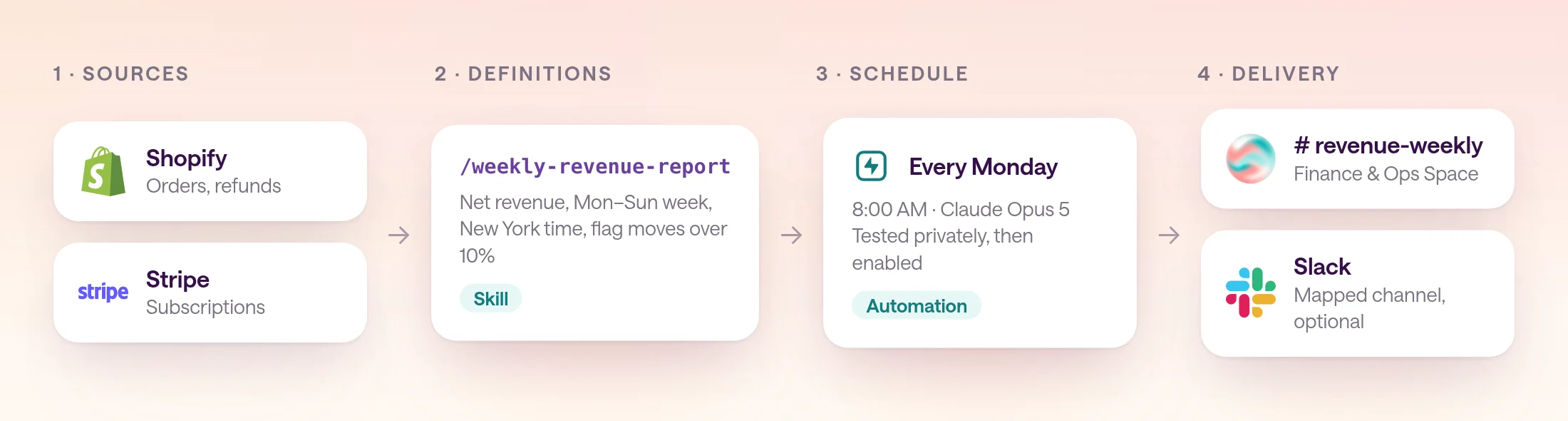
Connect the source systems to one shared Space, and give it only the access this report needs.
In type.com, connections give a Space access to your tools. Use organization connections for shared business systems, like your store, billing, or CRM, so the report does not depend on one person's login. Personal connections use one person's account and suit email or calendars better.
A connection added to the workspace is not available in every Space. Assign it to the Space that will run the report, and nowhere else it is not needed. Where a tool supports read-only roles, use one: a report only needs to read.
- 1
Pick the Space that owns the report
Use the team's existing Space, such as Finance & Ops, so the report, its follow-up questions, and its history live next to the rest of that team's work.
- 2
Connect each source once
Open the Space's Settings, Connections, and add the systems from your table. For the revenue example, that is Shopify and Stripe.
- 3
Ask one question by hand
In a thread, ask for last week's revenue and orders compared with the week before. If the numbers match what you see in the source, the connections are working.
Step 2: How do you make the numbers consistent every week?
Write the metric definitions and report format once, as a skill, so every run calculates the same way.
Most bad AI reports are a definitions problem. Is revenue gross or net of refunds? Does the week start Monday? Which timezone? Put the answers in a skill, a reusable SKILL.md the automation reads before it starts. The automation instructions then stay short and describe only this week's job.
Keep the skill narrow and explicit. When the finance lead changes a definition, they update the skill once and every future run follows it. Teammates who spot a problem can suggest an edit for the owner to review.
Example skill: /weekly-revenue-report
Period: the last complete Monday–Sunday week in America/New_York, compared with the week before. Revenue: Shopify net sales (gross sales minus discounts and refunds), in USD. Orders: paid Shopify orders, excluding test orders. Subscriptions: new and canceled Stripe subscriptions in the period. Format: one headline sentence with the biggest change and its cause, then a bullet per metric (current, prior, % change), then flags, then two questions for the team. Flags: any metric that moved more than 10%. Missing data: if a source fails or looks incomplete, say which number is missing. Never estimate it.
Step 3: How do you schedule the report?
Create a scheduled automation in the Space, point it at the skill, choose the destination channel, and set the day, time, and timezone.
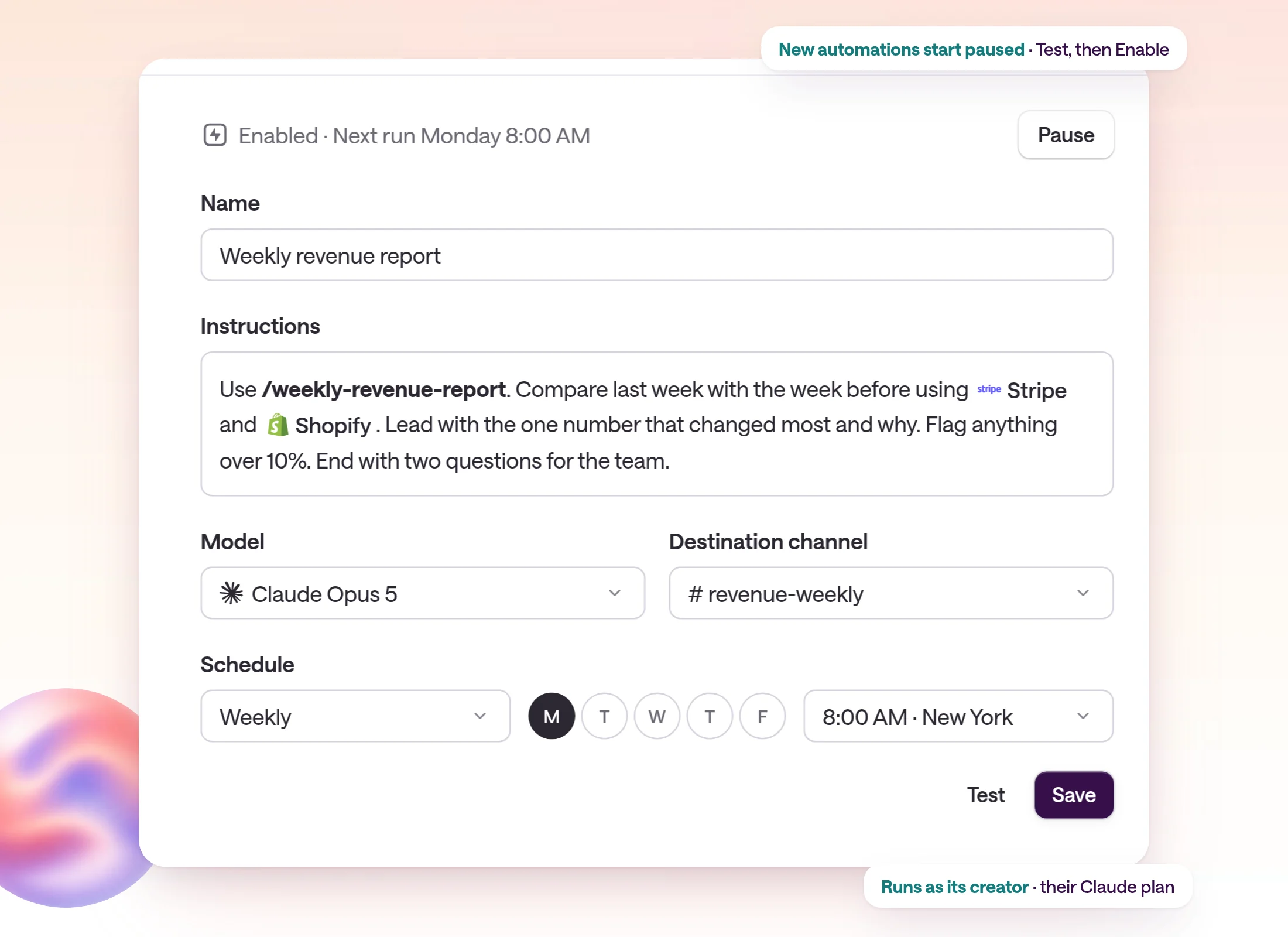
In type.com, scheduled automations open like documents and apps, with the instructions, schedule, model, destination, and run history in one editor. You can find them again under Library, Automations.
- 1
Choose Create, then Automation
Pick the Space that owns the report. The new automation opens in the Library, paused.
- 2
Name it and write short instructions
Invoke the skill by its handle, name the sources, and say what the team should get. The example below is enough.
- 3
Pick the model
Leave the Space default, or pin a model such as Claude Opus 5 so every run behaves the same way.
- 4
Choose the destination channel
Send the report to a dedicated channel, such as revenue-weekly, so each week's run is easy to find and discuss.
- 5
Set the schedule
Choose Weekly, select the day, and set a time and timezone that land before the meeting where the decision happens. Monthly reports can run on a calendar day or the first or last weekday.
- 6
Save
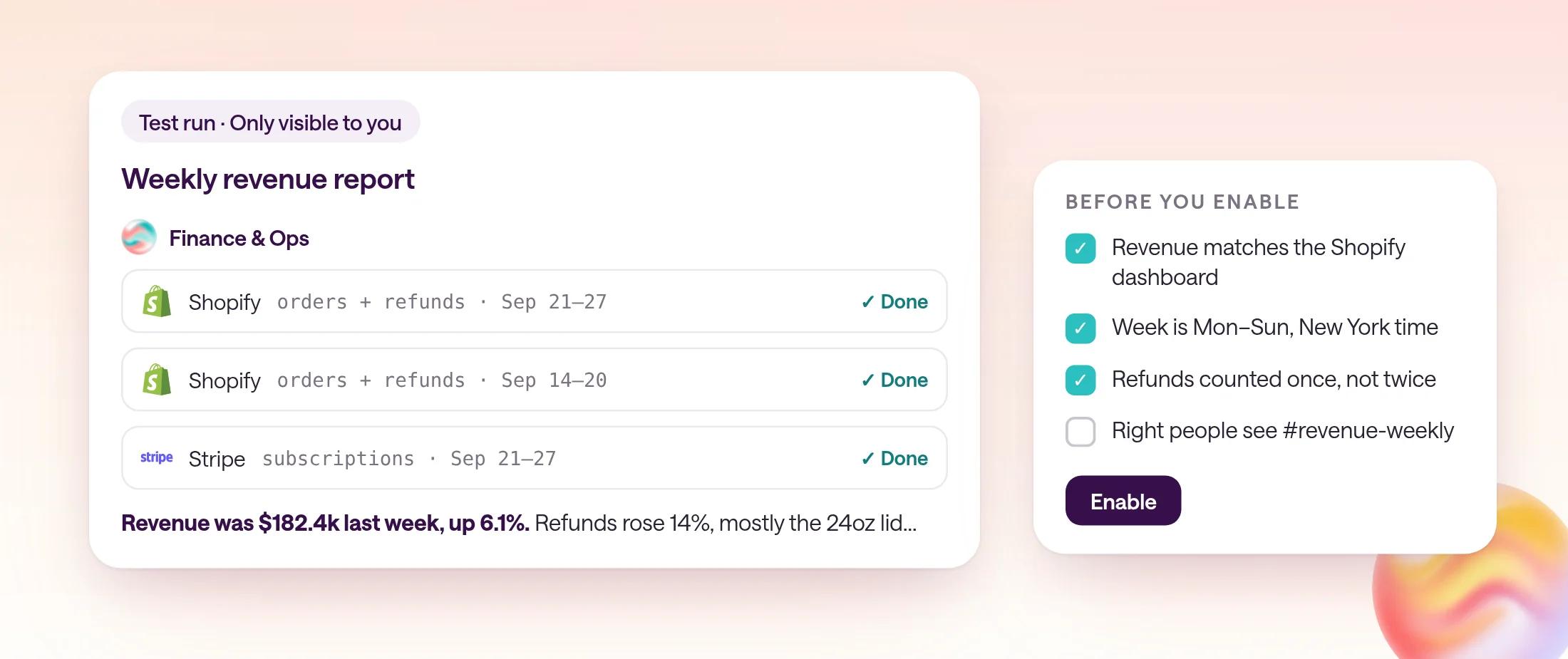
Save keeps the automation paused. Test it before you enable it.
Example automation instructions
Use /weekly-revenue-report. Compare last week with the week before using Stripe and Shopify. Lead with the one number that changed most and why. Flag anything over 10%. End with two questions for the team.
Step 4: How do you test the report before it runs?
Run a private test, check every number against its source, tighten the instructions, and only then enable the schedule.
Select Test in the automation editor. The test runs in a private thread visible only to you, using the saved instructions, so nobody else sees a half-finished report. Open the tool calls to see which sources were queried and what came back.
Compare two or three numbers against the source dashboards. When something is off, fix the definition in the skill rather than adding exceptions to the automation. When the test matches, select Enable.
| Problem | What to check |
|---|---|
| No thread was created | The automation is enabled, and the schedule's day, time, and timezone are right. |
| AI cannot reach the data | The connection is assigned to this Space, has the right scope, and has not expired. |
| Numbers do not match the dashboard | Date range, timezone, and gross versus net definitions in the skill. |
| The report is too long | Cut metrics nobody acts on, and ask for one headline sentence first. |
| Too many notifications | The Space's notification settings or the automation's destination channel. |
What does the finished weekly report look like?
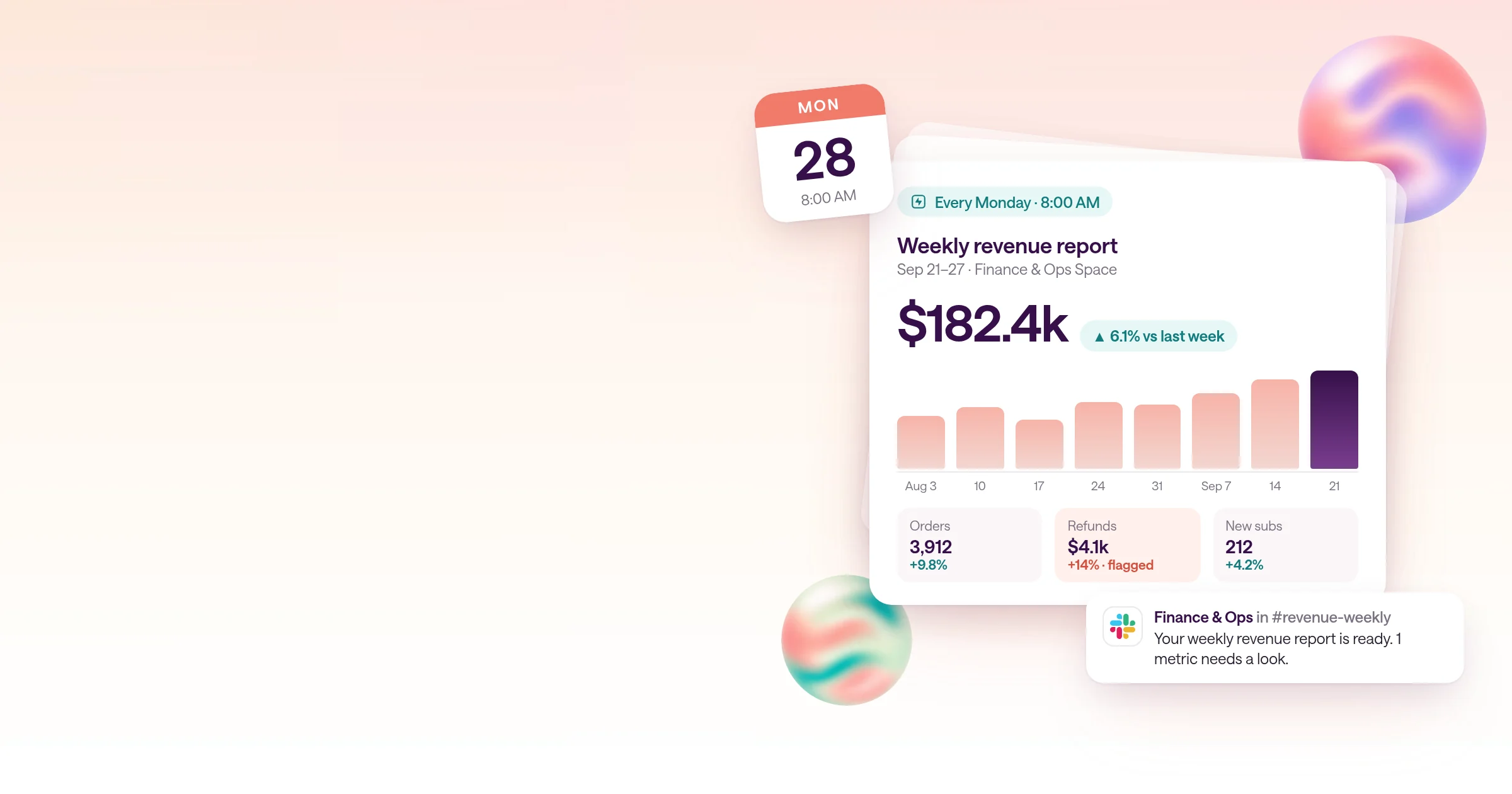
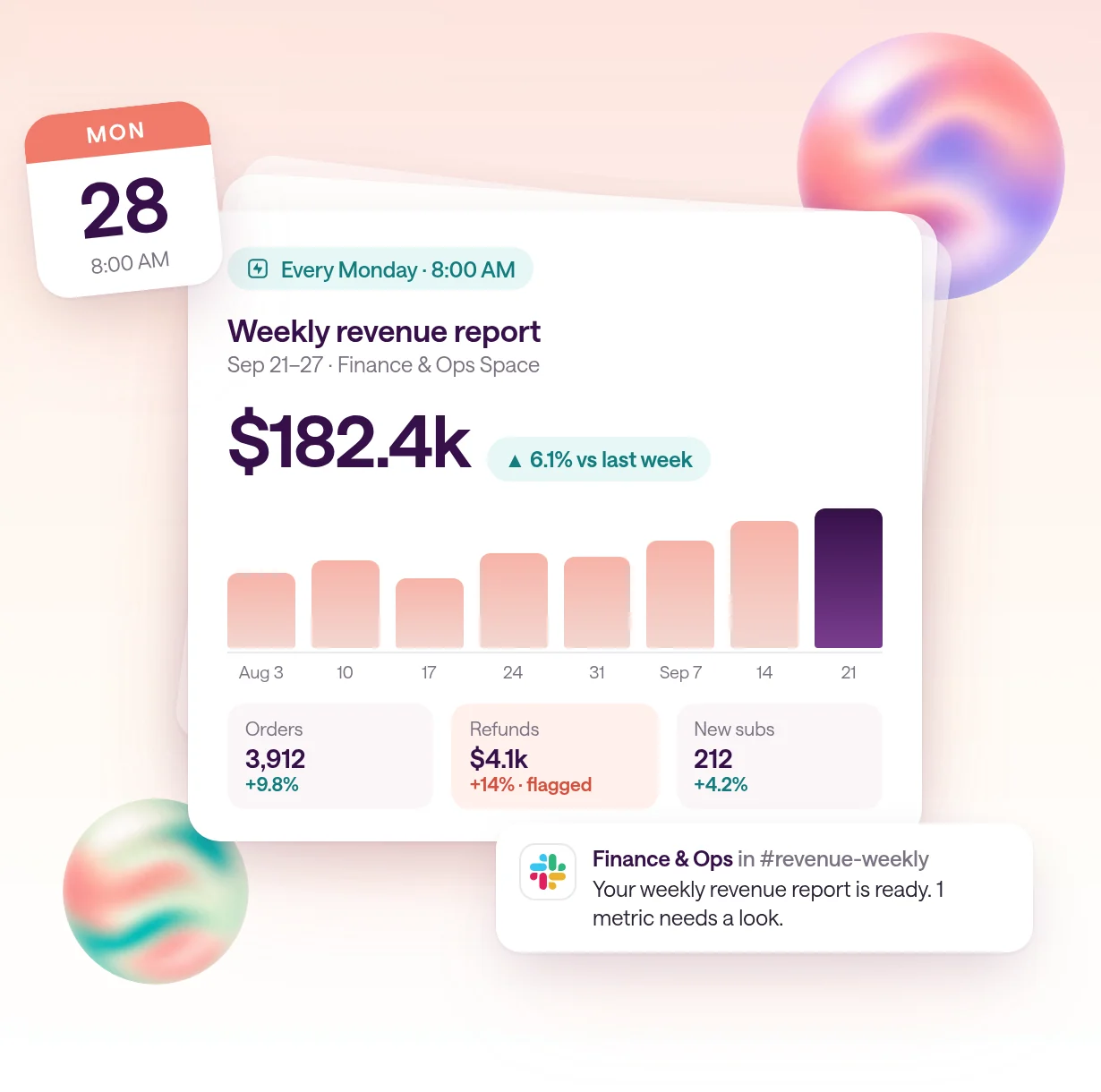
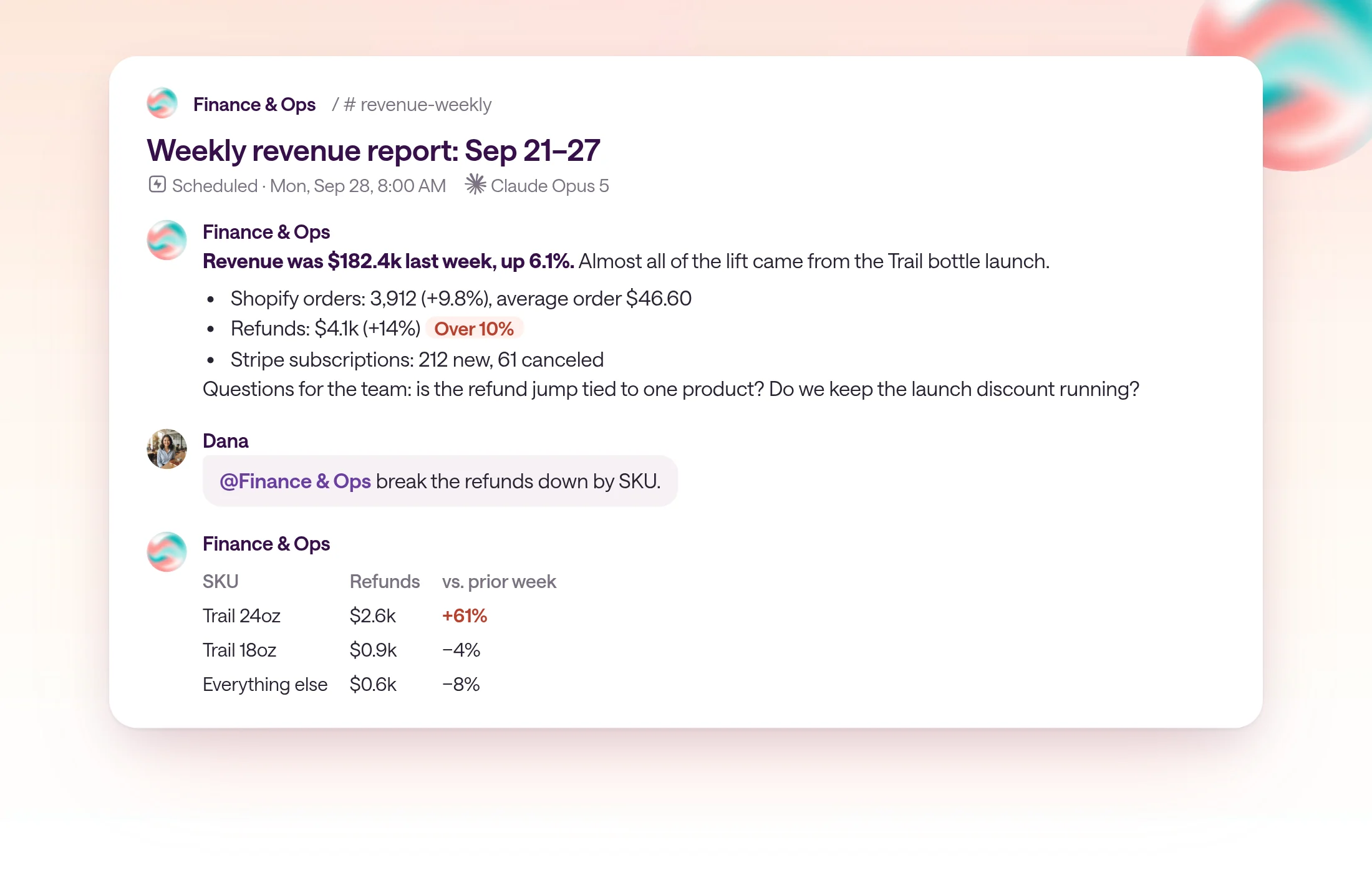
A short post in the team's channel: the headline change, the key numbers against last week, the flags, and questions the team can answer in the same thread.
The report above fits on one screen. The first line says what changed and why. The bullets give current values with the change from last week. The flag calls out the one number that crossed its threshold, and the closing questions tell the team what to decide.
Because the report is a thread, the discussion happens right under it. Dana asks for refunds by SKU, and the AI answers from the same connections and definitions: most of the jump is the Trail 24oz. Next Monday, the new run posts beside it, so anyone can compare weeks without digging through files.
If your team lives in Slack, map the report channel to a Slack channel. People can follow the report there and ask the Space for more detail without switching tools.
How do you keep the report accurate week after week?
Treat the first month as a tuning period: review every run, fix definitions at the source, and cut anything nobody uses.
When a run gets something wrong, fix it in the thread where it happened. Reply with the correction, ask the AI to explain what it used, then update the skill. Instructions written from real mistakes are better than instructions written in advance.
After four runs, ask the owner which parts changed a decision. Remove the rest. A report that shrinks over time is usually one the team keeps reading.
If your team is still rebuilding the same prompts in private chats, start with how to share Claude work across your team.
- Always compare with the prior period, never a lone number.
- Name missing or late data instead of estimating it.
- Keep definitions in the skill and the weekly job in the automation.
- Separate what the data shows from suggested explanations.
- Require a person's approval before the report triggers any change, like a budget edit.
Frequently asked questions
Can AI write a weekly report automatically?
Yes. A scheduled automation can pull data from connected tools, compare it with the prior week, and post a written summary on a fixed day and time. It works best when the metric definitions, date range, and flag rules are written down in advance.
What should a weekly team report include?
The exact date range and timezone, the one number that changed most and why, current and prior values for each key metric, anything past a set threshold, any missing or late data, and the decisions or questions the team should pick up.
How do you schedule a weekly report in type.com?
Choose Create, then Automation, and pick a Space. Write the instructions, choose the model and destination channel, set the schedule to Weekly with a day, time, and timezone, then Save. New automations start paused, so run Test and then Enable.
How do you stop an AI report from making up numbers?
Connect the source systems instead of pasting exports, define every metric in a shared skill, require a prior-period comparison, and tell the automation to name missing data rather than estimate it. Review the first few runs before the team relies on it.
Whose AI subscription runs a scheduled report?
In type.com, a scheduled automation runs with its creator's execution identity and provider credentials. If the creator connected a Claude or ChatGPT subscription, eligible runs use it; otherwise they use the workspace allowance.
Can the weekly report go to Slack?
Scheduled automations post to a channel in the Space. If the team works in Slack, map that channel to a Slack channel so people can follow the report and ask follow-up questions without leaving Slack.